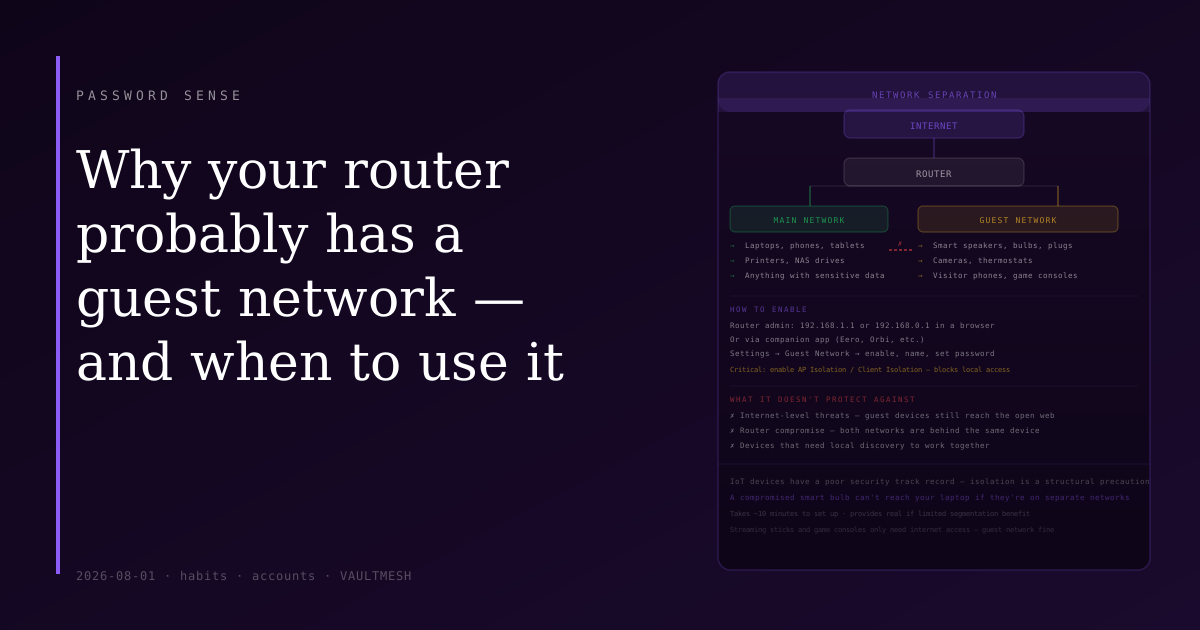
Why your router probably has a guest network — and when to use it
Most home routers sold in the last several years include a guest network feature. Many people never enable it, either because they don't know it's there or aren't sure when they'd use it.
The short answer: if you have smart home devices, a guest network is worth turning on and putting those devices on it. If you have visitors who need Wi-Fi, the same applies.
What a guest network actually does
A guest network creates a separate Wi-Fi network that shares your internet connection but is isolated from your main devices. Something connected to your guest network can access the internet normally, but it cannot see or communicate with devices on your primary network.
In practice: a guest phone cannot access files on your main laptop. A smart speaker on the guest network cannot communicate with your computers, printers, or network storage. A visitor's device cannot browse your local network.
This isolation is the main value. It's a simple boundary between things you trust and things you trust less.
Why smart devices belong on a guest network
Smart home devices — thermostats, cameras, light bulbs, smart plugs, voice assistants — vary considerably in how well they're maintained and how long they receive security updates. Many IoT devices have unpatched vulnerabilities, run outdated software, or phone home to services you have limited visibility into.
Putting these devices on your main network means they share the same local network segment as your laptops, phones, and anything sensitive. If a poorly secured smart bulb is compromised, an attacker with access to it can attempt to reach other devices on the same network.
Putting them on a guest network creates a boundary: they can talk to the internet (which they need to function), but they can't reach your personal computers even if they're compromised.
This doesn't require distrusting specific devices — it's a structural precaution. The IoT security track record broadly is poor enough that keeping these devices isolated from your main machines is a reasonable default.
Setting it up
Most routers let you enable a guest network through the admin interface — typically accessed at 192.168.1.1 or 192.168.0.1 in a browser, or through a companion app if you have a newer mesh system.
Look for "Guest Network" or "Guest Wi-Fi" in the settings. Enable it, give it a name, and set a password. Important: make sure the option that prevents guest devices from accessing the local network is enabled — this is sometimes called "AP Isolation," "Client Isolation," or "Allow guests to access local network" (set to off).
Once set up, connect your IoT devices and any visitor phones to the guest network. Your personal devices stay on the main network.
What the guest network doesn't protect against
Network isolation is useful but limited in scope. A few things worth knowing:
Internet-level threats aren't blocked. Devices on a guest network can still be reached from the internet, still connect to malicious sites, and still be part of botnets if compromised. The guest network doesn't add an internet firewall — it only creates local isolation.
If your router is compromised, both networks are affected. The isolation is maintained by the router. An attacker who compromises the router itself has access to everything behind it.
Devices that need to work together have to be on the same network. A home assistant that needs to control smart bulbs, a printer shared by household members, devices that use local discovery protocols — these won't work across network boundaries. You'll need to decide which devices actually need to communicate with each other versus which ones just need internet access.
The practical setup
Main network: your personal laptops, phones, tablets, and anything with sensitive data.
Guest network: smart speakers, cameras, smart bulbs, smart plugs, thermostats, game consoles, streaming sticks, and visitor devices.
This takes about ten minutes to configure and provides a real if limited improvement in the segmentation of your home network. It's not a complete security measure, but it's a straightforward one with a clear practical benefit.
If you're not sure how to access your router's admin interface, the model name on the label usually has documentation available. Most guest network setups are a few clicks once you're in the admin interface.