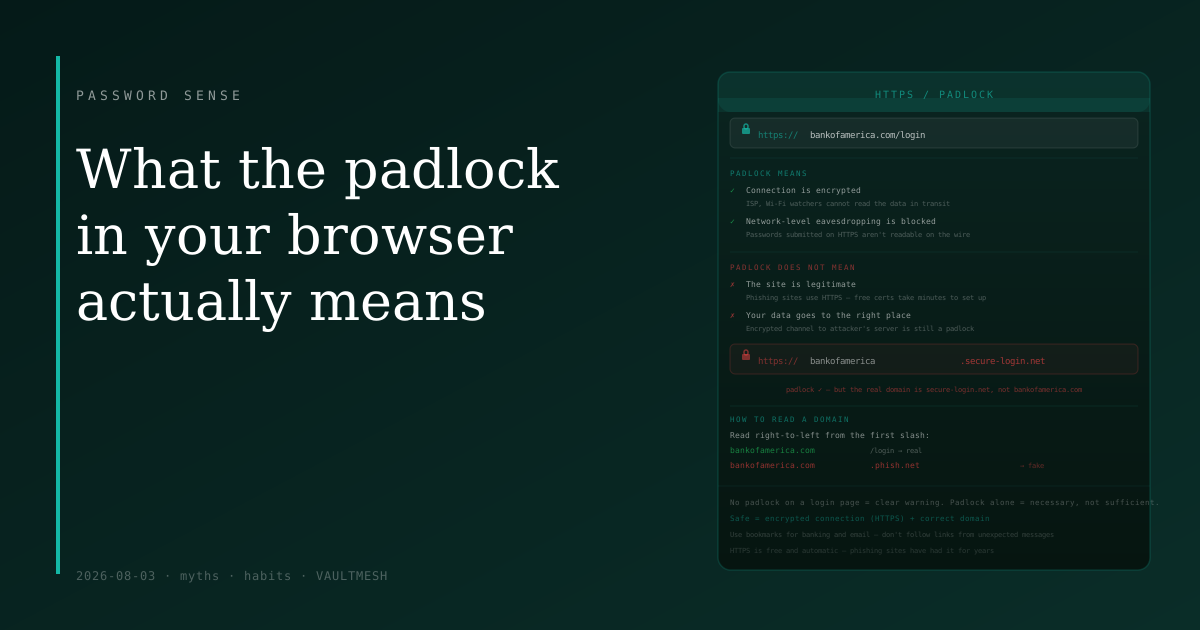
What the padlock in your browser actually means
For years, the security advice was simple: look for the padlock before entering any sensitive information. A padlock means safe. No padlock means don't trust it.
That advice needs an update. The padlock is still worth understanding, but it no longer means what most people assume it does.
What HTTPS actually protects
HTTPS (the "S" stands for secure) means the connection between your browser and the website is encrypted. When you load a page over HTTPS, the data traveling between your device and the server is scrambled so that anyone watching the connection — your ISP, someone on the same Wi-Fi network, a router along the way — cannot read it.
This matters. Without it, someone on your network could see the form data you submit, including passwords. HTTPS prevents that interception. It also provides some verification that you're talking to the actual server for that domain, not a network-level impersonator.
These are real and useful protections. The padlock is not meaningless.
What it doesn't tell you
The padlock says nothing about whether the site itself is honest.
Setting up HTTPS is free and takes minutes. Services like Let's Encrypt have made it automatic and available to everyone — including people building phishing sites. A fake login page designed to steal your banking credentials can, and typically does, have a valid padlock and an https:// address.
When you land on a convincing fake version of your bank's website, your browser shows a padlock because the connection to that fake site is encrypted. The connection is secure in the literal sense — your data travels safely from your device to the attacker's server. The problem is where it's going, not how it gets there.
This is why "look for the padlock" stopped being sufficient advice once HTTPS became nearly universal. The padlock was a useful shortcut when only legitimate sites bothered with certificates. Now it's table stakes for everyone.
What to check instead
The thing worth looking at is the domain name — the address in the URL bar, not the visual appearance of the page.
Banks, retailers, and government services have specific domains. Your bank's login page is at a specific address you can verify. Phishing sites use domains that look similar at a glance: extra words, character substitutions (paypa1.com, bankofamerica-secure.com), or plausible-sounding subdomains on an unrelated domain (signin.bank-secure.example.com).
The padlock tells you about the connection. The domain tells you who you're connecting to. Both matter, and the second one is the one people skip.
A few habits that help:
Use bookmarks for high-value sites. Your bank's login page should be a bookmark, not something you navigate to by clicking a link in an email. A bookmark takes you to the real address every time.
Read the full domain when it matters. Before entering a password on any financial or sensitive site, look at the address bar. Read from the rightmost part of the domain first: bankofamerica.com is the bank; bankofamerica.com.phishingsite.net is not. The rightmost part before the first slash is the actual domain.
Treat any unexpected link with extra scrutiny. Emails and texts that link to login pages are the delivery mechanism for most phishing. If you didn't initiate the navigation, go to the site directly instead.
The padlock is still useful
None of this means HTTPS is pointless. An HTTP site (no padlock) is genuinely less safe for entering any information — that data can be read by anyone watching the connection. If you ever see a site prompting for a password without HTTPS, that's a clear warning sign.
The updated mental model: HTTPS means the channel is encrypted, not that the destination is trustworthy. The padlock is necessary but not sufficient. The domain is what tells you whether you're in the right place.
Both pieces together — encrypted connection, correct domain — are what "safe" actually looks like.