How to spot a phishing login page before you type
You get an email saying your account has been suspended and you need to log in immediately to restore access. The page it links to looks exactly right — the logo, the colors, the layout. You type your password.
That's the point. Phishing login pages are designed to be indistinguishable from the real thing at a glance. The good news is that a second look, at the right things, catches the large majority of attempts.
The domain name is the only thing that doesn't lie
Every element of a phishing page can be copied: logos, fonts, colors, error messages, even security badges. What can't be copied is a domain name the attacker doesn't own.
Before you type anything on a login page, look at the actual URL in the address bar. Not the page title. Not the logo. The URL.
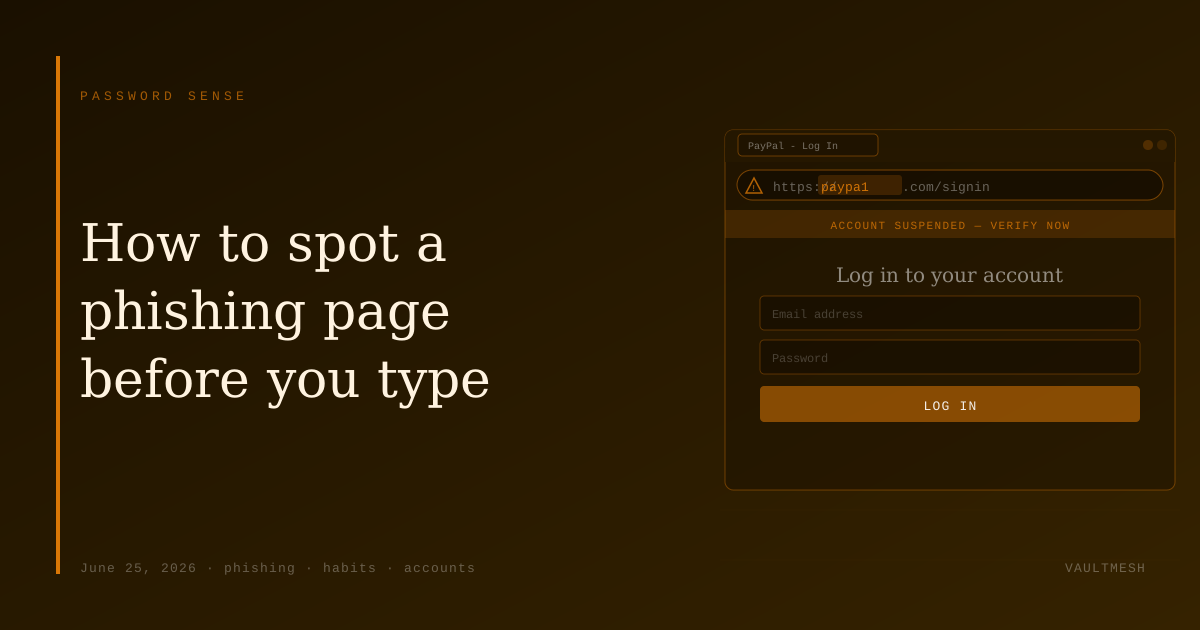
A real login page for a bank, email provider, or any other service will be on that service's actual domain. paypal.com is PayPal. paypa1.com (with a numeral 1), paypal-secure.com, or login-paypal.net are not. Attackers often use domains that look right at a quick scan — a letter swapped, a word added, a different top-level domain.
The check takes two seconds. Make it a habit.
The padlock does not mean the site is safe
For years, the advice was "look for the padlock." The padlock icon means the connection is encrypted — and that's still true. But it does not mean the site is legitimate.
Attackers can and do obtain valid SSL certificates for phishing domains. A padlock means your connection to the site is encrypted. It says nothing about whether the site is who it claims to be.
If a login page has no padlock, that's a red flag. But its presence is not reassurance. The domain name is what matters.
Urgency is a technique, not a reason to hurry
"Your account will be closed in 24 hours." "Unusual activity detected — verify now." "You must confirm your identity immediately."
Phishing messages consistently use urgency because it works. When something feels pressing, people skip the checks they'd otherwise run. The urgency itself is worth noticing as a signal.
Real services do send security alerts, and some are genuine. The difference is that a real alert can be verified by navigating to the service directly — not by clicking the link in the email. If an email says there's a problem with your account, open a new tab, type the service's address yourself, and log in from there. If there's actually an issue, you'll see it.
Hovering before you click
On desktop, hovering over a link before clicking shows the destination URL in the browser's status bar. This takes less than a second and lets you see where the link actually goes before you follow it.
On mobile, pressing and holding a link shows a URL preview in most browsers. It's more cumbersome, but available when something looks off.
What these checks don't catch
These cues handle the common case well. More sophisticated attacks — a compromised legitimate subdomain, a very new domain with no red flags yet — are harder to spot by inspection alone.
Two-factor authentication helps here: even if an attacker gets your password from a phishing page, they still need the second factor. A password manager that autofills based on the domain will also quietly refuse to fill credentials on a fake site, because the domain doesn't match — the autofill simply won't appear.
No single habit is enough on its own. But checking the domain name before typing, treating urgency as a reason to slow down rather than speed up, and understanding what the padlock does and doesn't mean puts the most common phishing attempts in a category you can recognize.