Passkeys: the sign-in method that doesn't use a password
When a website asks you to "sign in with a passkey," it's using a completely different mechanism than a password. You don't type anything. There's no string of characters to remember, forget, or have stolen. Instead, your device proves you're you — using a key that never leaves the device.
This isn't marketing language. It's a meaningful shift in how authentication works.
What a passkey actually is
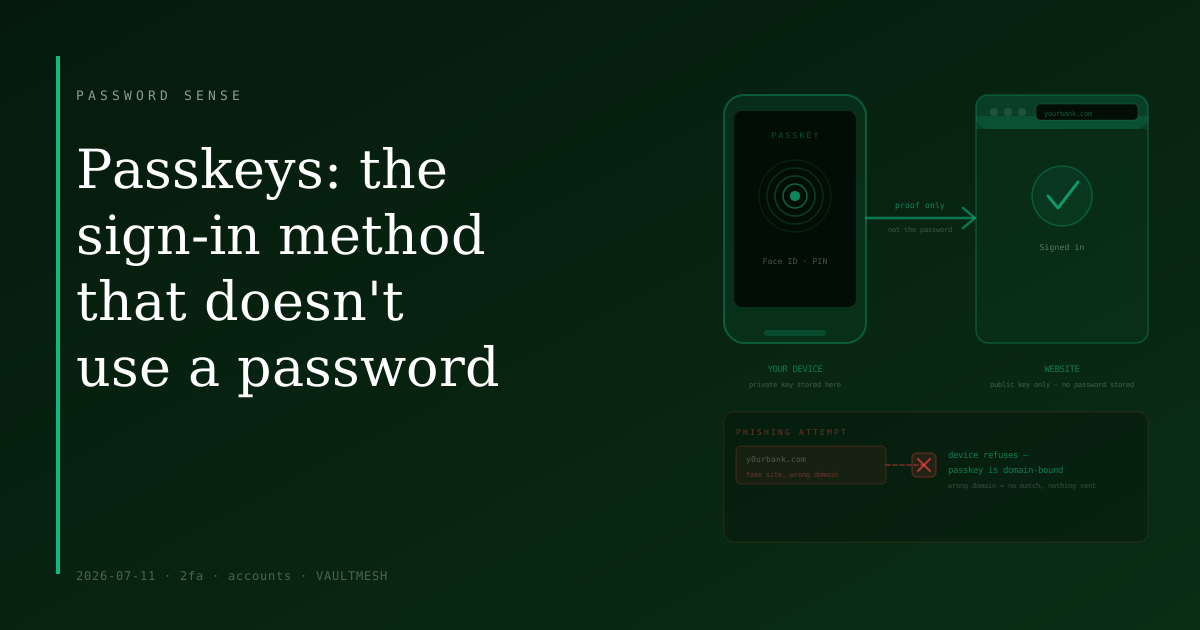
A passkey uses a pair of mathematically linked keys. Your device generates them when you create the passkey and keeps the private key — the secret part — stored locally. The website gets only the public key, which is useless on its own. When you sign in, your device performs a short cryptographic operation that proves it holds the private key, without ever sending the private key itself.
To authorize that proof, you use your device's own unlock method: Face ID, a fingerprint reader, or your PIN. That's the step that confirms it's actually you triggering the authentication, not just someone who picked up your unlocked device.
Why this makes common attacks harder
Passwords get compromised in two main ways: phishing (you type one into a fake site) and data breaches (a real site's password database gets leaked).
Passkeys resist both.
On the phishing side: a passkey is created for a specific website domain. When your browser goes to sign in, it checks that the domain matches. A fake site designed to look like your bank will not receive your passkey — the domain doesn't match, so the authentication simply doesn't proceed. There's no credential to harvest because nothing leaves your device until the domain check passes.
On the breach side: the site never stores your password, because there isn't one. If its database is compromised, attackers get your public key, which does them no good without your device.
This doesn't mean passkeys are immune to everything. Physical access to your unlocked device is still a risk. But the two attacks responsible for most account compromises at scale are substantially blocked.
What to do when a site offers one
Sites that support passkeys usually present the option in account security settings, sometimes as an "Add a passkey" button. When you tap it, your device asks for biometric confirmation — Face ID, fingerprint, or PIN — and that's it. The passkey is saved and synced to your other devices through your platform's sync system (iCloud Keychain on Apple devices, Google Password Manager on Android and Chrome).
Your existing password doesn't disappear when you add a passkey. Passkeys are generally an additional option, not a forced replacement. But once you have one set up, signing in looks like: navigate to the site, confirm with biometrics, done. No password field, no 2FA code to copy.
The honest caveats
Wide support is still expanding. Many common websites still require passwords; passkeys are available in pockets, not everywhere. You'll be managing a mix for the foreseeable future.
There's also a device-ecosystem dimension. Passkeys sync across your own devices but not automatically across different platforms — say, an iPhone and a Windows machine you use occasionally. Cross-platform support is improving, and some password managers now store and sync passkeys across devices and operating systems. But it's an area still in transition.
And if you lose access to all your devices and your cloud account at the same time, you fall back on whatever the site provides as a backup — usually still your password. A strong password remains relevant on passkey-capable accounts, at least as a fallback.
The bottom line
When a site you use offers a passkey, it's worth setting one up. The authentication becomes meaningfully harder to phish or breach, and sign-in gets simpler rather than more complicated. Passkeys don't replace good habits elsewhere — strong unique passwords, 2FA on accounts that don't support passkeys yet — but where they're available, they're the better option.