Device encryption: why it matters when your phone goes missing
A lock screen keeps someone from using your phone's interface. What it doesn't do, on its own, is prevent someone from reading the data stored on the device. With the right tools and physical access, it's possible to connect a phone to a computer and pull data from the storage directly — completely bypassing the lock screen.
That's what full-device encryption addresses. The good news is that most people already have it turned on without knowing.
What encryption actually does
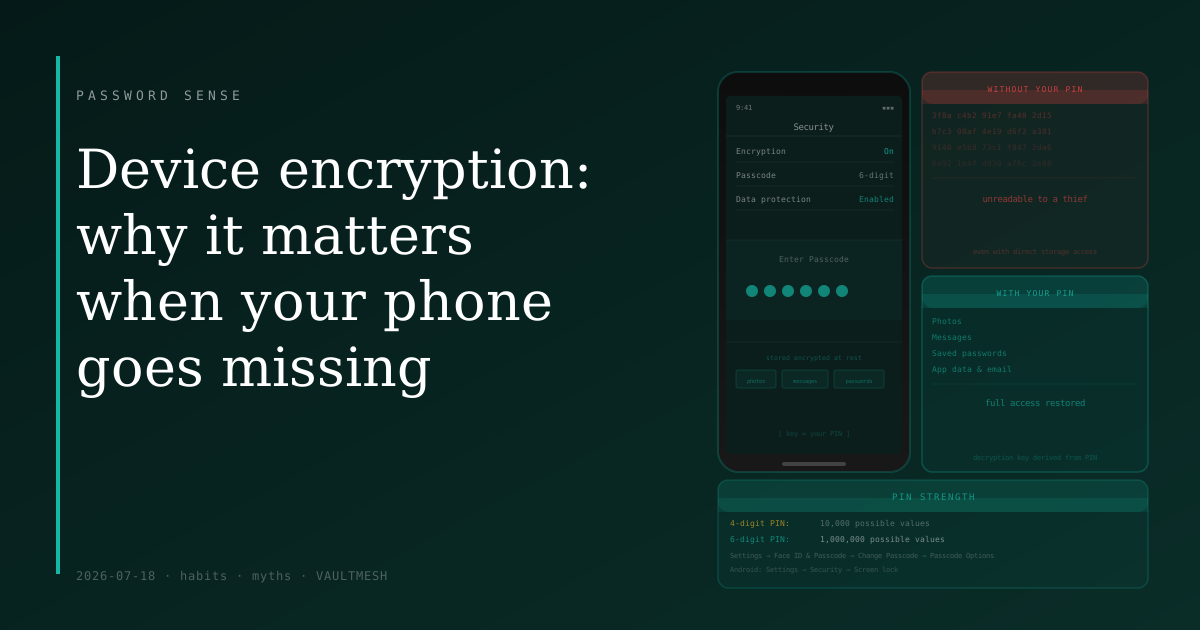
When device encryption is enabled, all the data on your phone — photos, messages, saved credentials, app data, emails — is stored in scrambled form. Reading those bytes directly produces meaningless output without the decryption key.
That key is derived from your lock screen PIN or passphrase. When you enter your PIN to unlock your phone, you're not just dismissing the interface — you're providing the key the device needs to decrypt its own storage for that session. Without the correct PIN, the storage contents can't be read, even if someone removes the storage or connects the phone to another system.
This is a meaningful difference from just having a lock screen. A lock screen controls the software interface. Encryption protects the data itself at the storage level.
What's already enabled on most devices
Full-device encryption has been enabled by default on iPhones since iOS 8. On Android, it became the default on most devices starting around 2015, with the specific rollout varying by manufacturer and device. If you have a phone from the last several years, it's almost certainly already encrypted.
Laptops are more variable. Macs with Apple Silicon or the T2 chip encrypt storage by default. Windows Pro and Enterprise include BitLocker, and it's enabled by default on many newer devices sold with Windows 11. Older Windows machines, and Windows Home editions, may not have it on without you explicitly enabling it.
How to verify
On iPhone, encryption is active whenever a passcode is set. Under Settings → Face ID & Passcode (or Touch ID & Passcode), look for a line near the bottom that says "Data protection is enabled." Setting a passcode is what activates encryption — there's no separate toggle.
On Android, go to Settings → Security. Look for an Encryption section. If it says "Encrypted," you're covered. The exact location varies by device manufacturer.
On Windows, search for "Device encryption" or "BitLocker" in the Start menu to see the current status. On a Mac, go to System Settings → Privacy & Security → FileVault.
Why your PIN matters as much as encryption itself
Encryption keeps your data safe from someone who bypasses your phone's operating system. But the protection is only as strong as the key — and the key comes from your PIN.
A 4-digit PIN has 10,000 possible values. A 6-digit PIN has 1,000,000. An attacker trying guesses systematically faces a much harder problem with a longer PIN, even though modern phones add lockout timers and attempt limits that slow things down further. The PIN is still the weakest point in the chain.
The practical step: if you're using a 4-digit PIN, switch to 6 digits or an alphanumeric passphrase. On iPhone, go to Settings → Face ID & Passcode → Change Passcode → Passcode Options. The inconvenience of two extra digits at unlock is small; the security improvement is real.
Biometrics — Face ID, fingerprint — are convenient for day-to-day unlocking, but your PIN is the fallback and the root of the decryption key. It's worth making it as strong as you're comfortable with.
The part most people miss
Encryption and lock screens are different layers of protection, and they work together. Encryption makes your data unreadable without the key. The lock screen enforces who can provide that key. If your PIN is easy to guess, the encryption is easier to bypass.
One thing this means in practice: a stolen phone with a short, guessable PIN is meaningfully less protected than one with a longer PIN, even if both have encryption enabled. The encryption is doing its job — it's the PIN that becomes the limiting factor.
Check that encryption is on. Lengthen your PIN if it's still four digits. Those two things together cover the scenario where your phone ends up in the wrong hands.