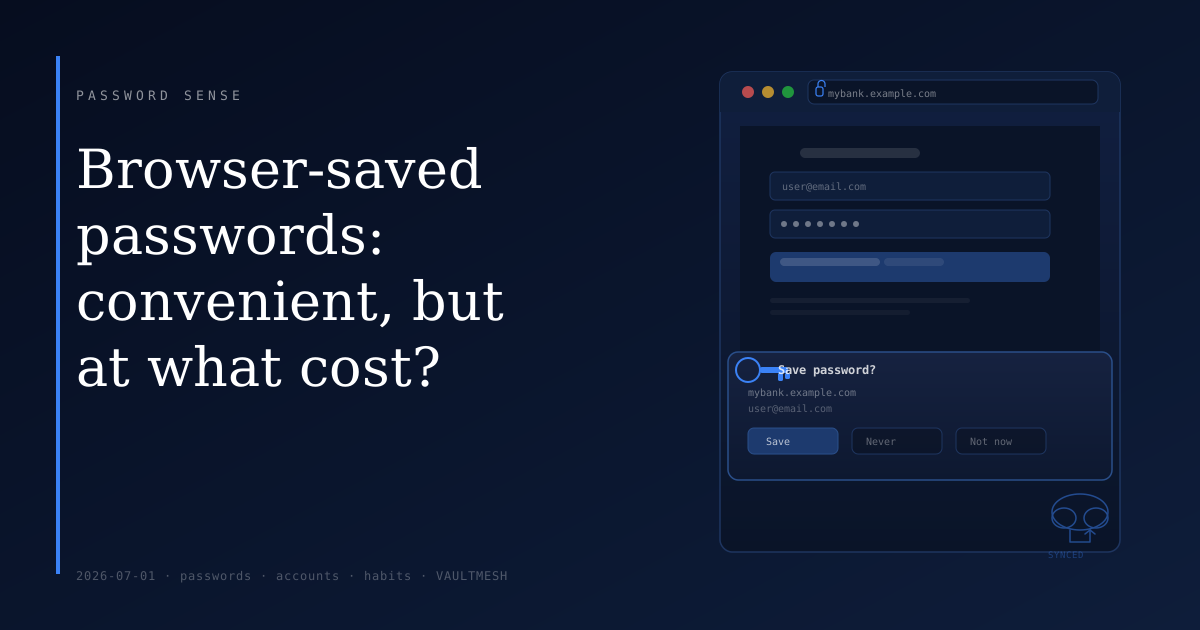
Browser-saved passwords: convenient, but at what cost?
When you log in somewhere and your browser asks "Save password?", the path of least resistance is to click yes. It's one less thing to remember. The next time you visit, the form fills itself in and you're logged in.
A lot of people handle most of their passwords this way. The honest answer is that it's not as dangerous as it's sometimes made out to be. But it's also not as safe as people tend to assume. Understanding what's actually happening helps you decide when browser saving is fine and when to think more carefully.
Where the passwords actually go
When a browser saves a password, it stores it locally on your device — in a file tied to your operating system account or browser profile. Chrome and Edge can sync those passwords to Google or Microsoft's servers if you're signed into the browser; Safari does the same through iCloud Keychain; Firefox syncs through Mozilla if you have an account set up.
The local copy is generally protected by the same thing protecting the rest of your computer: your device login. On most modern systems, the browser asks for your device password or fingerprint before revealing stored passwords in its settings menu. That's a reasonable baseline for a locked, personal machine.
Where things get more complicated
Shared or unlocked devices. If someone else uses your computer while it's logged in — a family member, a colleague at a shared workstation — the browser will autofill your credentials automatically when they visit your sites. They don't need to know your password. For shared devices, autofill is a genuine exposure.
What local access means. An attacker who gains access to your user account — through malware, for instance — can in many cases extract browser-saved passwords. The exact difficulty depends on the operating system and browser, but browser passwords live in files the operating system treats as belonging to your user account. They aren't kept in a separate hardened environment.
Sync to cloud. If your passwords sync to your browser account, they're on that company's servers. Losing access to your Google or Apple account, or having it compromised, has implications for your saved passwords too.
Cross-browser and app gaps. Browser-saved passwords work inside that browser only. If you use multiple browsers, or apps that open their own in-app webview (common on mobile), autofill won't carry across. Passwords end up scattered in different places with no clear inventory.
When browser saving works fine
For accounts where the consequences of compromise are low — a recipe site, a news forum, a free trial you signed up for once — browser-saved passwords are a practical choice. They're convenient, they make it easier to use different passwords per site (because you're not the one memorizing them), and they're protected well enough for the risk level.
Browser vendors have also improved credential handling meaningfully over the years: warning you when a saved password shows up in known breach data, flagging passwords reused across multiple sites, and requiring device authentication before exposing stored credentials in settings.
When to think twice
For accounts that carry real weight — email, banking, anything tied to your identity or finances — it's worth asking whether browser storage is the right fit. Not because it's outright insecure, but because the protections are tied to your device login and your browser account rather than a dedicated layer you control separately.
If your device is stolen unlocked, if your browser account is compromised, or if someone gets access to your user profile, the passwords stored there are reachable. For low-stakes accounts, that trade-off is often acceptable. For your primary email or financial accounts, it's worth thinking about whether you want those credentials in the same place as your browsing history.
Dedicated credential managers are designed specifically for this problem — they work across browsers and apps, provide a single place to audit what you've stored, and typically have separate locking controls. They're worth considering for your most sensitive accounts even if you continue using browser saving for everything else.
The practical step isn't to delete every saved browser password. It's to look at which accounts carry the most risk, and make sure those aren't relying entirely on convenience.