Backup codes: the 2FA safety net most people never save
When you enable two-factor authentication on an account, the setup usually ends with a screen showing a grid of codes and something like "save these somewhere safe." Most people dismiss this without saving anything, or download the file and promptly forget where.
These are backup codes. They exist for a specific reason, and skipping this step can lock you out of your own account when your normal 2FA method stops working.
What backup codes are and when you'd need them
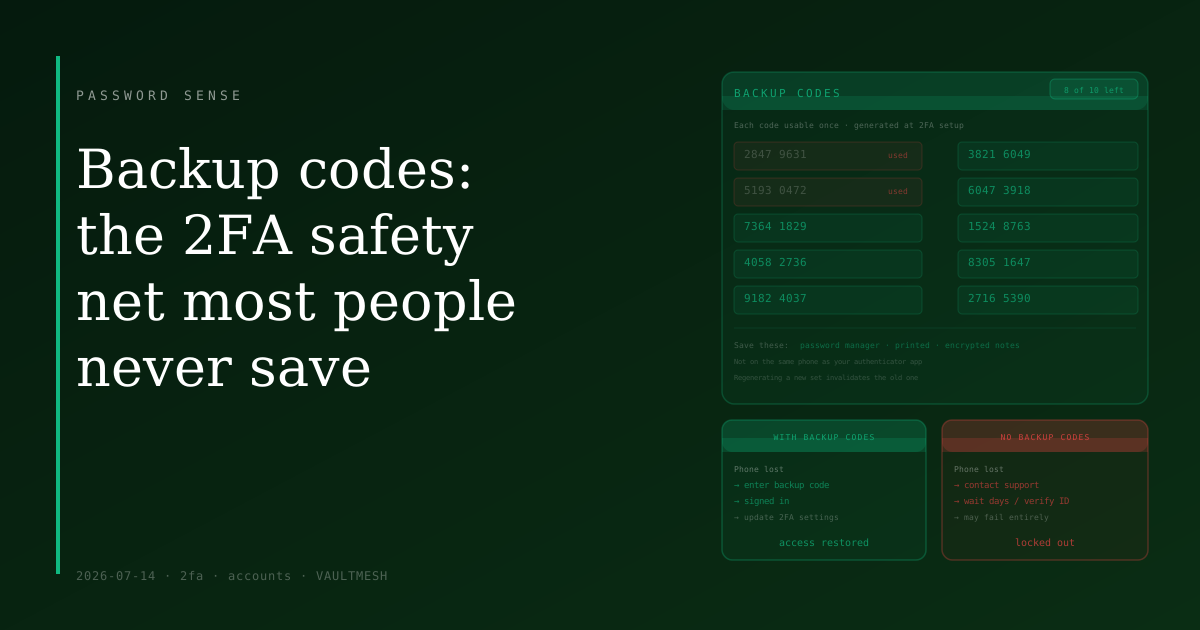
Backup codes are a set of one-time-use codes generated by the service when you first enable two-factor authentication. Each code works exactly once to sign in to your account in place of your usual 2FA method — your authenticator app, your SMS codes, or your hardware key.
Unlike the codes your authenticator app generates, backup codes aren't time-sensitive. They don't expire on a 30-second timer. They sit waiting, stored by the service, available when you need them.
The scenario they're designed for: you can't access your usual 2FA method. Your phone is broken, lost, or stolen. You switched to a new phone and forgot to migrate your authenticator app. Your hardware key has gone missing. In any of these cases, a backup code lets you sign in and update your settings from there.
What happens when you don't have them
When 2FA is enabled and you lose access to both your authenticator and your backup codes, getting back into the account is harder than most people expect. Services intentionally make their manual recovery processes difficult — if a "lost my phone" story bypassed 2FA, it would also work for an attacker.
Depending on the service, recovery might require identity verification, waiting several days, or uploading documentation. Some services don't offer a manual recovery path at all for accounts with 2FA enabled and no backup codes. For those, the account may be permanently inaccessible.
This is the most common way people get locked out of their own accounts after setting up 2FA.
Where to save them
The key requirement: backup codes need to be accessible without the device that holds your authenticator.
Practical options:
- A password manager, alongside the account's login credentials. If you're locked out of an account, your password manager is the first place you'd look anyway — having the backup codes there keeps everything in one accessible place.
- Printed out and kept somewhere physically secure at home, like a locked drawer or with other important documents.
- An encrypted notes app that syncs to a device other than your phone.
What doesn't work: saving them as a screenshot on the same phone as your authenticator app. If that phone is the one that's lost or broken, the backup codes are gone with it. Storing them in an email draft has the same problem — it's only as accessible as your email account.
Keeping them current
Most services let you generate a new set of backup codes at any time, which immediately invalidates the old ones. A few things worth knowing:
If you use a code and the count gets low, generate a new set. Ten codes sounds like plenty until a few have been used in testing or in actual recoveries.
When you generate a new set, save the new codes before closing the page. The old codes are gone the moment you regenerate.
If you've never saved your backup codes, or genuinely don't know whether you did, go check. Open the security settings on your important accounts and look for a two-factor authentication or backup codes section. Most services will show you whether codes were generated during setup and let you view or regenerate them.
Start with the accounts that matter most: your primary email, banking, and any account with 2FA enabled that you'd struggle to live without.
The short version
Backup codes take a couple of minutes to save properly. The entire value is in doing it before you need them — at the moment you need them, it's already too late to generate them.