What apps actually get when you tap Allow
An app launches for the first time and asks for permission to access your contacts. You tap Allow. You don't really think about it again.
What you've granted varies considerably depending on which permission was requested, which platform you're on, and when the request came up relative to what the app was doing. Understanding what you're actually agreeing to helps make that tap more deliberate.
What the common permissions cover
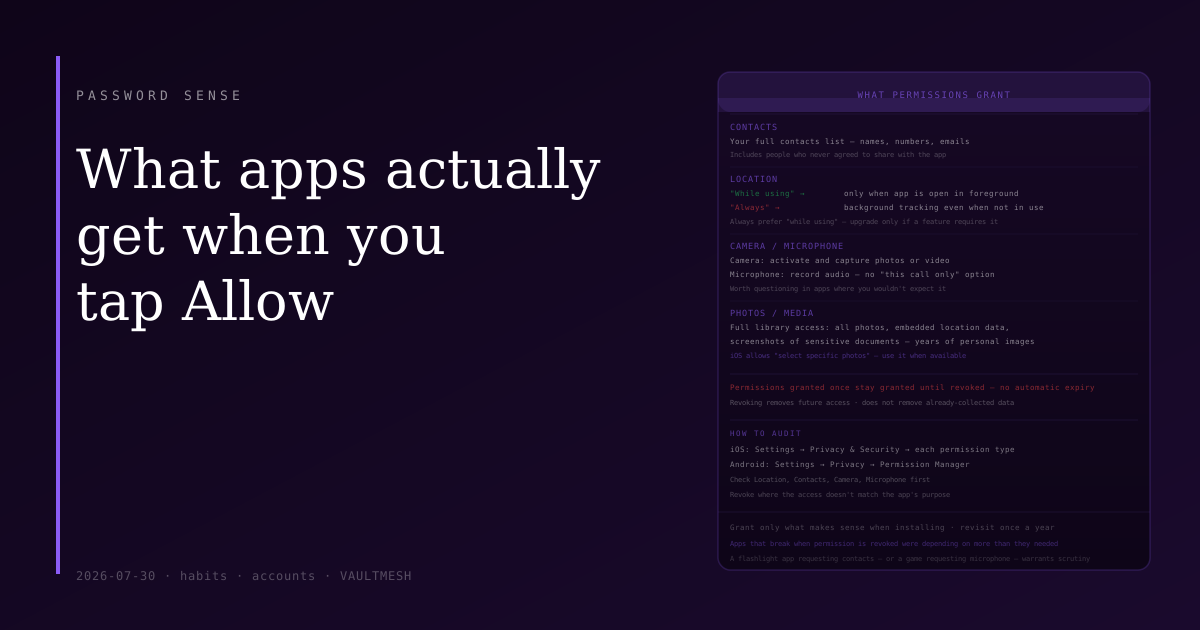
Contacts: The app gets access to your full contacts list — names, phone numbers, email addresses, and any other fields you've added. This includes contacts for people who never agreed to share their information with the app. Several social and messaging apps request this to find friends who also use the service. The data goes to the app's servers where its use is governed by its privacy policy, not your contact list.
Location: On iOS and Android, this comes in two forms. "While using the app" means location is accessible when the app is open in the foreground. "Always" means the app can access location in the background, even when you're not actively using it. The difference is meaningful — a navigation app asking for location while in use is different from an app running location tracking passively in the background.
Camera: The app can activate and capture photos or video through your camera. This is required for obvious functions like taking photos, but worth examining in apps where you wouldn't expect it.
Microphone: The app can record audio. On both platforms, there's no granular "this call only" permission — granting microphone access grants it for the app's lifetime until you revoke it.
Photos/Media: On iOS, apps can request access to your entire photo library or to specific photos you select. Android has similar permissions. The full library option gives the app access to all your photos, which for many people includes a decade or more of personal images, location data embedded in photo metadata, and screenshots of things like sensitive documents.
How long permissions last
A permission granted once stays granted until you revoke it. There's no automatic expiry. If you installed an app two years ago, tapped Allow on several permission dialogs, and then largely stopped using it — those permissions may still be active.
Both iOS and Android have introduced features to prompt about unused permissions. iOS will re-prompt you for apps that haven't been used in a while; Android 12 and later auto-resets permissions for apps dormant for several months. But these are not universal across all permission types or all device configurations.
When to think twice
Most permission requests are straightforward: a camera app needs camera access, a maps app needs location, a calling app needs microphone. The ones worth thinking about are requests that don't match the app's apparent purpose.
A flashlight app that requests contacts is worth questioning. A game that requests microphone access is worth questioning. A retail app that requests "always-on" location is worth reading the privacy policy for.
"While using the app" is almost always preferable to "always" for location — grant the more limited version first, and only upgrade if a specific feature requires background access.
How to audit what you've already granted
iOS: Settings → Privacy & Security. Each permission type (Location, Contacts, Microphone, etc.) shows a list of apps that have been granted access. Tap any app to see and change its status.
Android: Settings → Privacy → Permission Manager (or Apps → See all apps → [app name] → Permissions). The interface varies by manufacturer, but the permission manager shows which apps have which permissions.
Go through Location, Contacts, Camera, and Microphone first. Revoke anything where the access doesn't make sense for what you use the app for. Change any "always" location grants to "while using" unless you have a specific reason for background access.
What revoking a permission actually does
Revoking a permission removes the app's ability to access that resource going forward. It does not retroactively remove data the app has already collected — if an app was granted contacts access and uploaded your contact list to its servers two years ago, that data is already there. But it stops further access.
Some apps will stop working properly if key permissions are revoked, which tells you something about how central that access is to their operation. Others work fine with reduced permissions, in which case you may not have needed to grant full access in the first place.
The practical habit
When an app you're installing for the first time asks for permissions, grant only what makes sense for what you're about to do. If the timing seems odd — a permission request coming up before you've used the relevant feature — you can often tap "Don't Allow" and grant it later when the feature is actually requested.
For existing apps, a permissions audit once a year is a reasonable cadence. The list of apps with access to your location and contacts can grow quietly over time, and trimming it periodically keeps it from getting out of hand.